
Add or Update Your NLU ID Photo
You can now add or update your NLU ID photo online! Here's how:
- Navigate to https://auth.onlinephotosubmission.com/saml/idp/nlu and log in via SSO.
-
Select a photo to upload by clicking the upload tile or dragging and dropping an image file onto the tile. If you are using a mobile device, you may also take a photo using your device’s camera. ID photos must follow these guidelines:
- Should be cropped slightly above head to middle of chest
- Should be taken against a plain, light background
- Must be a high quality color photo
- Must not include sunglasses, hat, or other accessories.
- Must be positioned directly facing the camera
- Eyes should be open and looking at the camera
- It should look like a photo that would be acceptable on a passport or driver's license
Once your photo has been uploaded, an automated system will evaluate it for acceptability. If it is approved, you may adjust its cropping and move on to the next step. If it is rejected, you may either upload a new photo, or wait for admin approval to override the rejection.
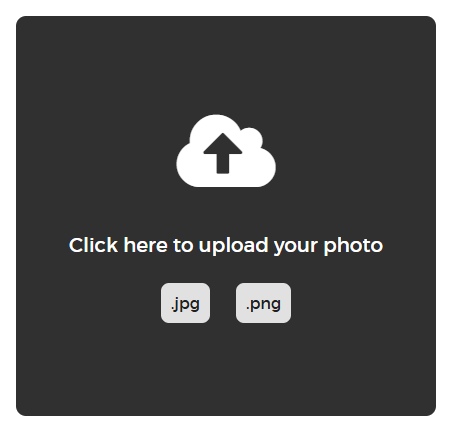
- Select a supporting document by clicking the upload tile or dragging and dropping an image file onto the tile. Accepted supporting documents include the following:
- State ID
- Driver's License
- Passport
- NLU School ID
The automated system will compare the photo in your supporting document to the photo you uploaded in Step 2 to determine if they are the same individual. If approved, your photo NLU ID photo will now be updated. If it is rejected, an admin can review the photo and supporting document and override the rejection.
Approved photos will be updated in the AVRO Mobile app within 24 hours.